GETYOURSONG · STEP-BY-STEP GUIDE
How to use GetYourSong
Start with one idea. Follow the steps. Keep control of your words and your sound.
GetYourSong prepares lyrics and musical instructions called prompts. You generate the audio separately in Suno or another music platform.
Find your answer · 18
1. Start here: your first song
The shortest route from an idea to a prompt.
You do not need musical training. Think of GetYourSong as a written brief for your music: what it is about, how it should feel and how it should sound.
What to do
- Sign in. Choose Create a Song if you are starting from an idea.
- Choose one genre, an era and a short story. Leave optional sound changes off for your first try.
- Choose the lyric language and a target length. Review the choices and the credit total.
- Follow the creation buttons. If a story proposal appears, read it before you ask the app to write the lyrics.
- Review your result. Copy the style prompt and lyrics into their separate fields in Suno. Generate and listen there.
2. Which tool should I choose?
Pick the starting point that matches what you already have.
You can use one tool without completing all the others.
What to do
- An idea, but no reference song: Create a Song.
- A song whose musical style interests you: Analyze Song.
- Several tracks with a common musical direction: Album Studio.
- You mainly need new lyrics: Lyrics Lab.
- A birthday, wedding, dedication or business jingle: Occasion Song.
- You already wrote the words: I have my own lyrics.
- You want to return to a saved result: Musical History.
3. Sign in, language and screen controls
Get in and make the screen comfortable to use.
What to do
- Open Sign in. Use Continue with Google or the email option shown on the page. If using email, open the latest sign-in link you receive.
- Use the flag or language selector for the interface. Choose the lyric language inside the song form separately. Changing the screen language does not automatically translate a saved lyric.
- Appearance changes the colors. Deep Blue is the default for a new visitor; your saved choice can be remembered. Choose a theme that is easy for you to read.
- On a phone, use Create, Analyze, History and More in the bottom menu. On a computer, use the left menu.
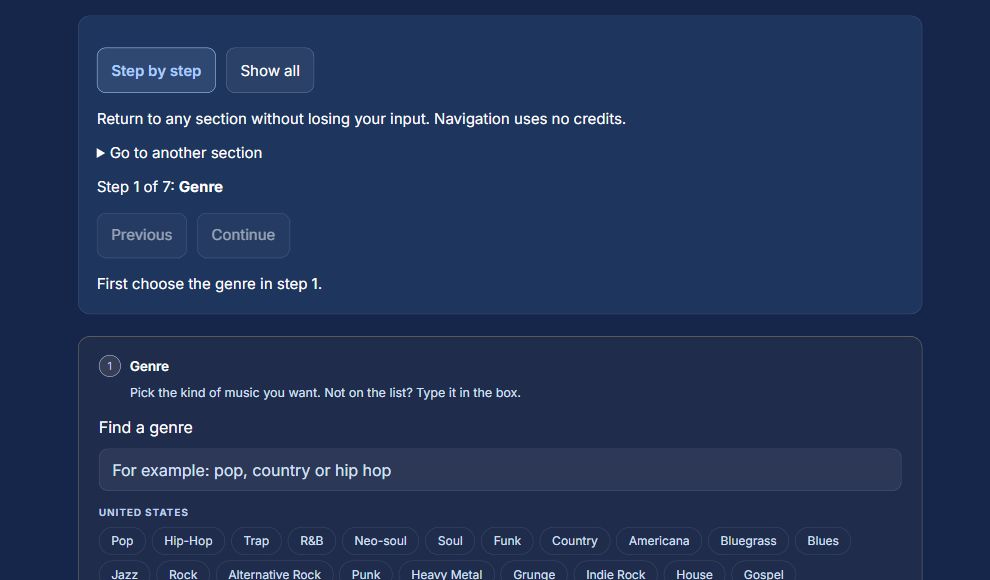
- Tap a section title or its + sign to open it. On forms with Step by step, use Continue and Previous. Show all displays the available sections together.
4. Create a Song, step by step
Genre, era, story, voice, language and length.
What to do
- Genre: search for the style and select it. If it is missing, use Other genre and type it. Choose a fusion only when you want one.
- Era: choose the period you want the production to evoke, or use the custom field if offered. This is about the sound, not the date of your story.
- What is the song about?: describe who is involved, what happens, how they feel and how it ends. A few clear sentences are a good start. Follow the character counter.
- Choose mood and voice. Instrumental means you want instructions for music without sung lyrics.
- Choose lyric language, any references and the review options you want. Reference names are inputs for musical direction; they are not intended as names to copy into the result.
- If you want expert genre writing from the start, select it before generation. Open Customize the sound only for the extra instructions you actually need.
- Choose the target length. Review the final summary and credit amount. Use the research/write button, review the proposed story if shown, then use Write the song.
- After success, copy or download the result. Use New song to clear the working form for another song; confirm that the result you need is saved first.
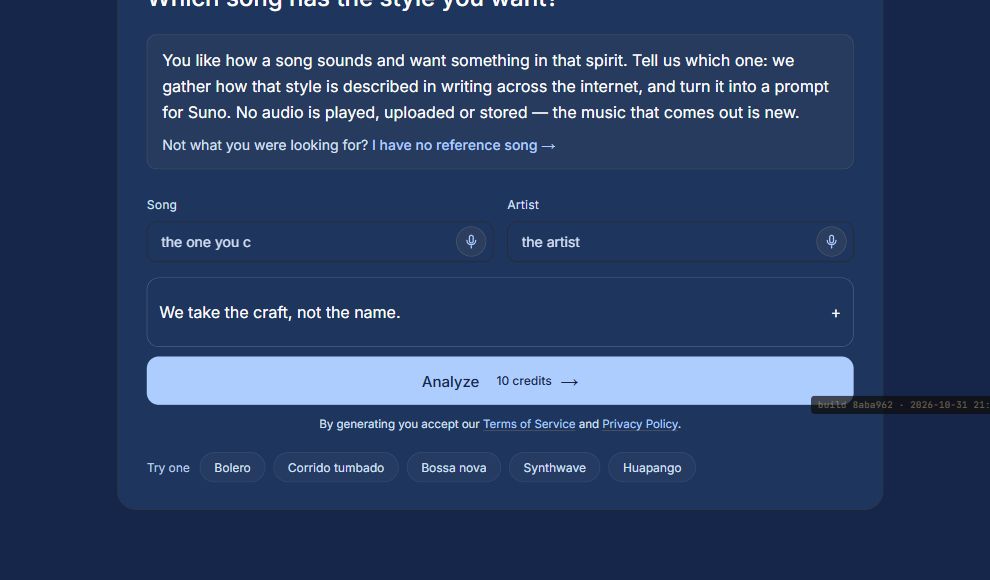
5. Analyze a song for musical direction
Use a reference without uploading its audio.
Analysis researches written descriptions of a musical style. It is not listening to or measuring an uploaded recording. Details such as tempo and vocal qualities can be estimates; use your ears to judge the generated audio.
What to do
- Enter the song title and the correct artist so the reference is unambiguous. Check spelling.
- Read the 10-credit amount and press Analyze when ready.
- Use Your prompt to find the style instructions and writing controls. Analysis contains the musical description and charts.
- Choose a suggested original title or write your own. Set the story, emotion, language and length before requesting new lyrics.
- Optional context can help develop your idea. Review it and apply it before writing. Writing lyrics from the analysis is a separate session costing 10 credits.
- If you continue into Album Studio using the saved analysis, reuse that analysis instead of starting another paid analysis. Album planning and lyrics have their own costs.
6. Research context: develop a story
Optional help before you ask for lyrics.
What to do
- Write a short starting idea in a form that offers Research context. Include the occasion, place or subject when relevant.
- Read the 20-credit cost and request the context. This does not itself write the final song.
- Read the proposed story. Check facts, names and details. Edit anything you do not want, then choose Use story or the equivalent apply button.
- Continue with songwriting. The applied story can be reused without a new research request; a fresh request is a new paid operation.
7. Expert genre writing
Choose it before writing, or review an existing lyric where offered.
This option asks for vocabulary, phrasing, rhyme and chorus choices suited to a genre. It is an AI writing option, not a human songwriter or endorsement by an artist.
What to do
- To change the musical genre too, open Create a complete version below the existing lyrics in Analyze Song. Choose a target genre, lyric language and instruments to retain. One operation costs 20 credits and returns lyrics, Style Prompt and Negative Prompt together. Copy all three from the new version; do not generate the original lyric again.
- In Create a Song, choose expert writing before the generation button. Select the writing genre; if missing, use Other genre.
- Standard creation is 10 credits. Creation with expert writing is 30 credits total: 10 + 20. You do not need to create a standard song first.
- Checking the option does not charge. Read the total on the generate action before confirming.
- On results that offer an expert review, an extra version costs 20 credits per lyric. This is different from selecting expert writing before the first lyric.
8. Personalize the sound and voices
Understand each optional control before turning it on.
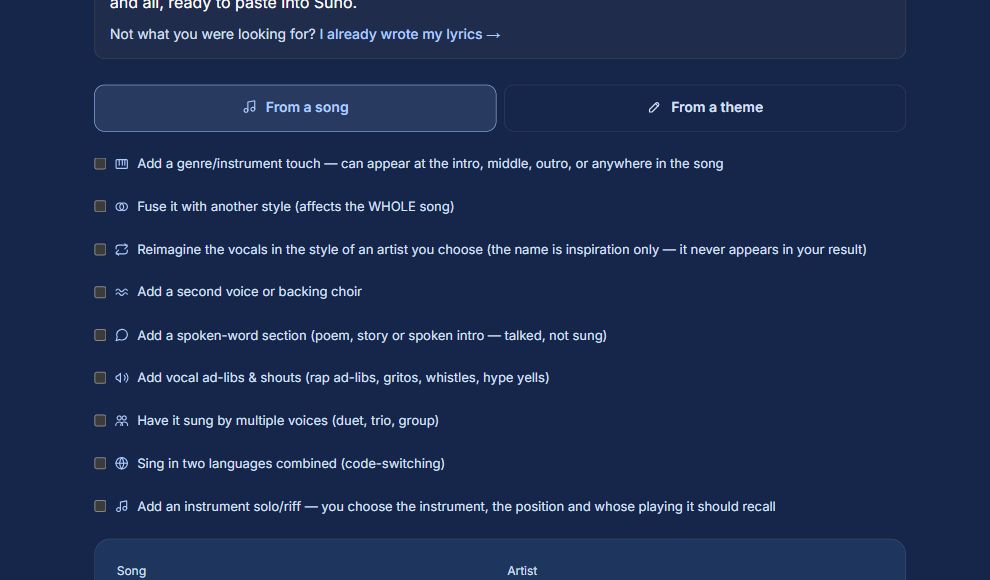
These controls write musical directions. They do not record a real singer or create audio inside GetYourSong. The audio generator may interpret them differently. Options vary by tool.
What to do
- Genre/instrument touch: add a local detail, such as piano in the intro. It does not mean changing the whole song.
- Fusion: combine styles across the whole song. Leave it off if you want only the selected genre.
- Vocal reinterpretation: describe a vocal character or delivery. It does not clone a voice or mean that the named reference sings your song.
- Second voice/backing choir: add supporting vocal instructions. Multi-voice/duet: assign different lead voices or parts.
- Spoken word: request a passage that is spoken rather than sung. Specify where it belongs and keep it brief.
- Ad-libs and shouts: add short exclamations or vocal details. A little is often clearer than using them everywhere.
- Two languages/code-switching: choose both languages and the distribution offered, such as separate sections or mixed lines.
- Solo/riff: choose the instrument and its location. Light mode, where offered, reduces written directions to leave more freedom to the audio generator.
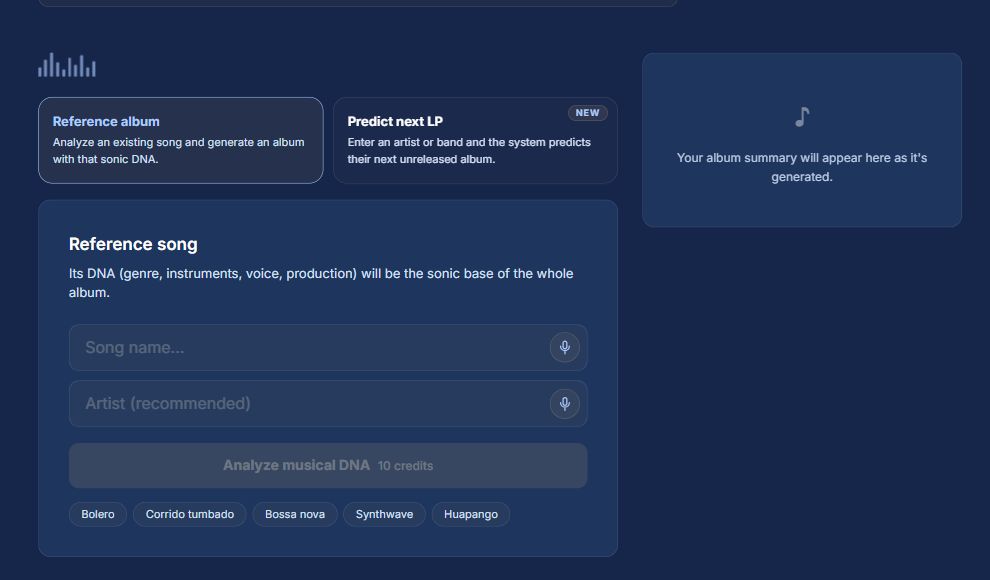
9. Album Studio: plan several songs
Review titles and stories before spending credits on every lyric.
What to do
- Start with a reference or a saved analysis passed from another tool. If you use an existing analysis, you do not need to analyze the same reference again.
- Choose the musical direction separately from the themes. You can keep one genre while the stories change.
- For theme distribution, choose a common subject when you want related stories, or varied topics when each track should explore something different.
- Request album proposals. Read and edit the suggested titles and story ideas before writing lyrics. Editing proposals does not itself generate a new lyric.
- Choose which tracks to write. Album planning costs 10 credits and each album lyric costs 10 credits. Read the total shown before a complete-album action.
- Keep each track’s prompt and lyrics together. Reusing context does not require a new research request for every track.
10. Lyrics Lab: write new words
Start from a reference or a theme.
What to do
- Choose From a song to use a style reference, or From a theme to start with your own subject.
- Describe the story and choose lyric language and target length. Add only the vocal or instrumental instructions you want.
- Review any story-fidelity choice and the 10-credit generation amount, then request the lyrics.
- Read the result for meaning, names, tone and repeated lines. Copy the lyric with its section labels when you want Suno to follow that structure.
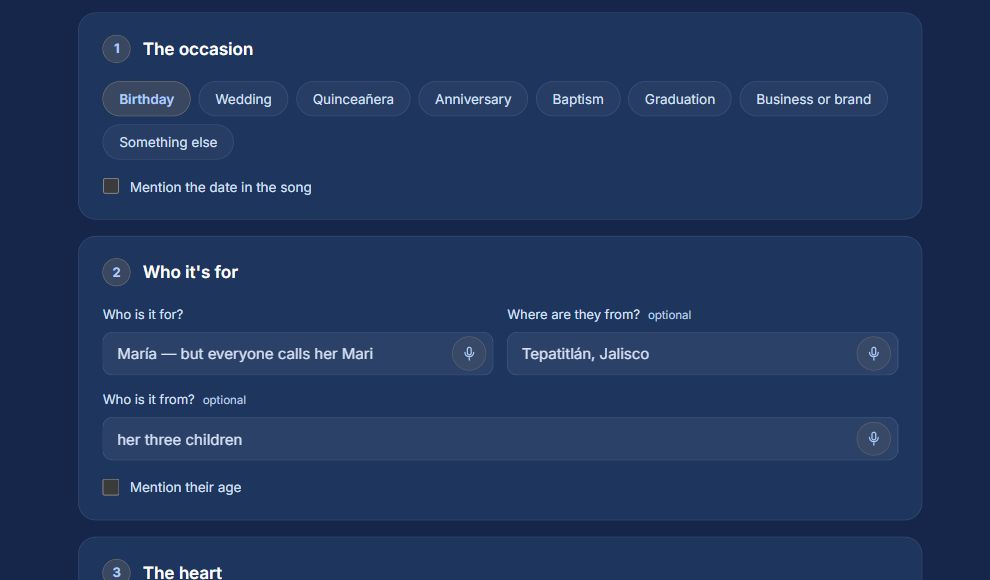
11. Occasion Song: a person or a special day
Birthdays, weddings, dedications and business jingles.
What to do
- Select the occasion. Choose Something else if your event is not listed.
- Say who it is for and who it is from. Include age or date only when you want them mentioned.
- Describe one real detail or memory that makes the dedication personal. Add anything that must never be mentioned.
- Choose the sound, emotion, lyric language and length. Check lyric language carefully: the interface language may be different.
- Research context is optional and separate. Create the song costs 20 credits. Review the total before confirming.
12. Use lyrics you already wrote
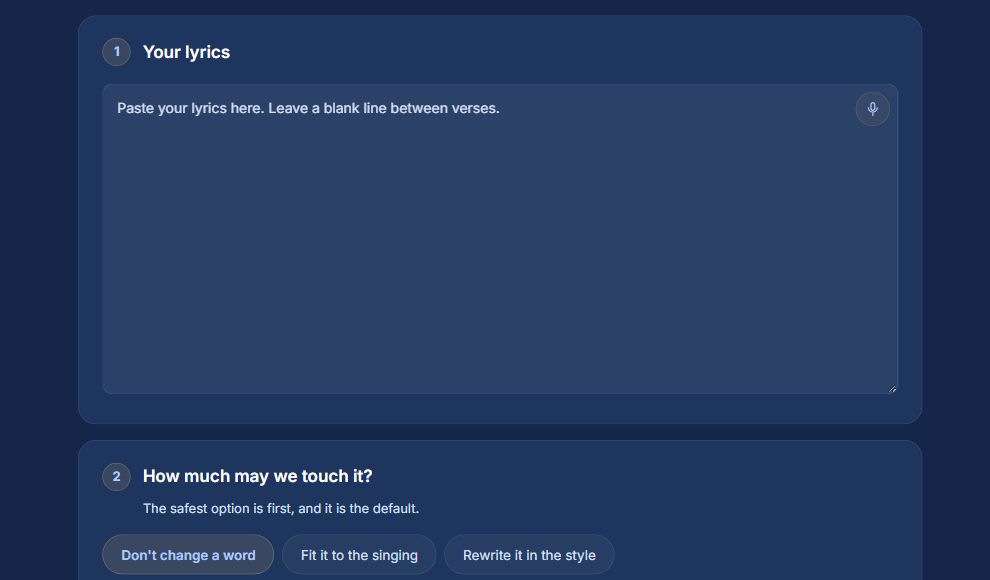
Choose how much the app may change.
What to do
- Paste your own lyrics. Leave blank lines between verses so the structure is easier to understand.
- Do not change a word protects your sung words and adds directions and sections. Choose this if the wording must stay yours.
- Fit it to the singing permits the adaptation described beside that option. Read the result carefully if exact phrasing matters.
- Rewrite it in the style gives permission to rewrite. Duration controls apply to rewriting; when you preserve the words, your own text largely determines length.
- Choose a genre, reference or the offered automatic choice. Set the lyric language and review the 10-credit action.
- After a result, new genre versions and translations are separate operations. Read the combined amount when selecting several.
13. Duration, characters and story fidelity
Why a target of 2:30 is an estimate.
GetYourSong controls the amount and structure of the text it writes. The final audio platform controls the performance, repeats, instrumental spaces and ending. A 2:30 target cannot guarantee an audio file of exactly 2:30.
What to do
- Choose Jingle or Short for a shorter result, and a song length for a fuller structure. Long instrumental solos or repeated choruses can increase audio length.
- A character counts a letter, number, punctuation mark or space. Watch the counter on each field; different fields have different limits.
- A researched story is a brief, not the final lyric. Shorten to one main event when you want a short song.
- If the app warns that your text will not fit, choose the offered option to summarize, extend the target or split the story. Read which action is paid before continuing.
- Style Prompt is limited in GetYourSong to 1000 characters. Lyrics have their own counter. Verify the limits of the current audio platform before pasting.
14. Copy the result into Suno
Put style, lyrics and exclusions in the right places.
What to do
- In GetYourSong, find Style Prompt. This describes genre, instruments, voice and production. Use its Copy button.
- Open Suno and choose its custom creation mode if available. Paste the style text into the Styles or musical-description field. The labels may change with Suno versions.
- Copy Lyrics into the separate lyric field. Keep section tags such as [Verse] and [Chorus] when you want those directions included.
- If the result includes a negative prompt, it lists unwanted elements. Put it in the exclusion field only if your audio platform offers one; do not paste it as sung words.
- Choose the title and relevant audio settings, generate in Suno and listen. Its plan, credits, terms and usage rights are separate from GetYourSong.
15. History, downloads and starting again
Keep your work and return to it safely.
What to do
- Open Musical History. Use its search and filters to find the result you want. Open the item to view the saved fields.
- Copy or download the fields you need using the available buttons. Viewing, copying and downloading do not cost generation credits.
- Use a continuation button when offered to reuse saved information. Reuse is free; a new writing or research operation can have a separate charge.
- Before New song clears your working form, make sure the result appears in history or download a copy. Clearing a form is different from deleting a saved item.
16. Credits, plans and account
Understand the amount before you confirm.
What to do
- The credit amount beside a button is for that operation. Independent actions have separate prices. Review the total rather than assuming everything costs the same.
- Plan credits renew under your subscription. Purchased credit packs are one-time payments. Buying a pack does not create or change a subscription.
- The app uses plan credits first. Purchased credits are preserved when your plan renews. Check My Account for your own balance and plan.
- Use payment management in My Account to open the available Stripe portal. Review invoices and the cancellation terms shown there. Do not confuse canceling renewal with receiving a refund.
- For an account deletion request, use the contact option provided in My Account. Review the refund policy or contact support about an incorrect charge.
17. If something does not work
Simple checks before you try a new paid action.
What to do
- Button disabled: check required fields and active sections. If an extra option is enabled, it may need an instrument, language or other choice.
- Sign-in problem: use the latest email link, check spam or try the same Google account you used before. Never share your password or sign-in link with support.
- Generation error: read the message and check your balance and history before starting another operation. A new request can be a new paid action.
- Saved text or a draft seems missing: confirm you are in the right account. Download important results instead of relying only on an open tab or local draft.
- Unexpected lyric or style: check genre, fusion, lyric language and rewrite permissions. Use one clear story and fewer extras for an easier first attempt.
- Contact support with the tool, approximate time, exact error and a screenshot with private details hidden. Do not send passwords, keys or payment-card details.
18. Small dictionary, in plain words
Prompt, BPM, chorus, riff and other labels.
What to do
- Prompt: written instructions for a generation tool. Style Prompt describes how music should sound. Lyrics are the words to sing.
- Genre: the musical family, such as pop or hip-hop. Era: the period or production character. Mood: the emotion or atmosphere.
- BPM: beats per minute, a way of describing tempo. A higher number often means a faster pulse; it does not set the duration of the whole song.
- Verse: a section that develops the story. Chorus: the central section that often returns. Bridge: a contrasting passage. Intro and outro: opening and ending.
- Riff: a short musical pattern. Solo: a featured instrumental passage. Backing vocals: voices behind the lead. Ad-lib: a short vocal addition.
- Musical DNA in the app means a written style profile. It does not mean copying a recording. LP means an album or a collection of tracks.
Current credit costs
A credit is a unit used inside GetYourSong. It is different from a Suno credit and different from an AI token. Read the amount beside an action before you confirm it.
Credits per feature
Standard song creation: 10 credits. With expert writing: 30 credits total. Context research is optional and costs 20 credits extra.
| Feature | Credits |
|---|---|
| New genre version · lyrics + style + exclusions | 20 credits |
| Create Song · session | 10 credits |
| Analyze Song · new session | 10 credits |
| Write lyrics from an analysis · new session | 10 credits |
| Occasion Song · design and writing | 20 credits |
| Research context · separate session | 20 credits |
| Album proposals | 10 credits |
| Write one album lyric | 10 credits |
| Lyrics Lab · generation | 10 credits |
| My Lyrics · version | 10 credits |
| New translation · per language | 10 credits |
| Create with expert writing · total (creation + upgrade) | 30 credits |
| Expert genre writing · review an existing lyric | 20 credits |
| Copy, download, history, edit proposals and reuse analysis | 0 credits |
Options included in one generation are not charged separately. Creation continues within its paid session. A new session or independent version has its own cost.